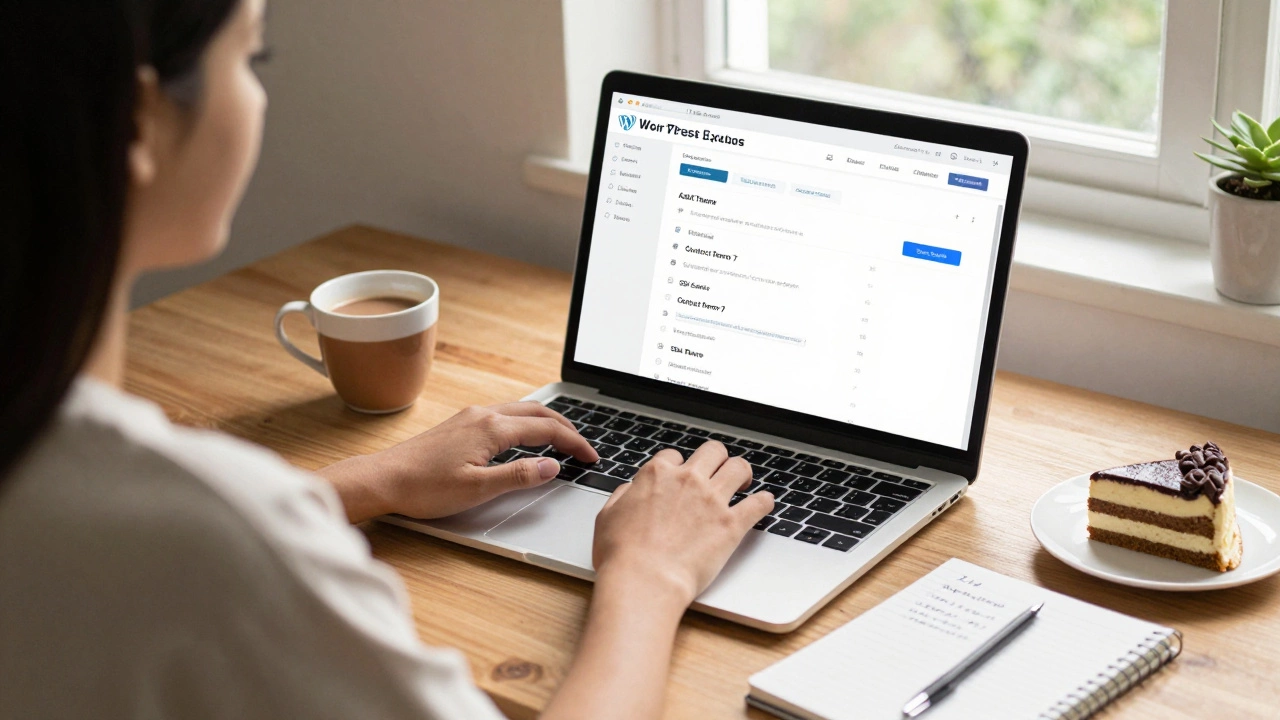
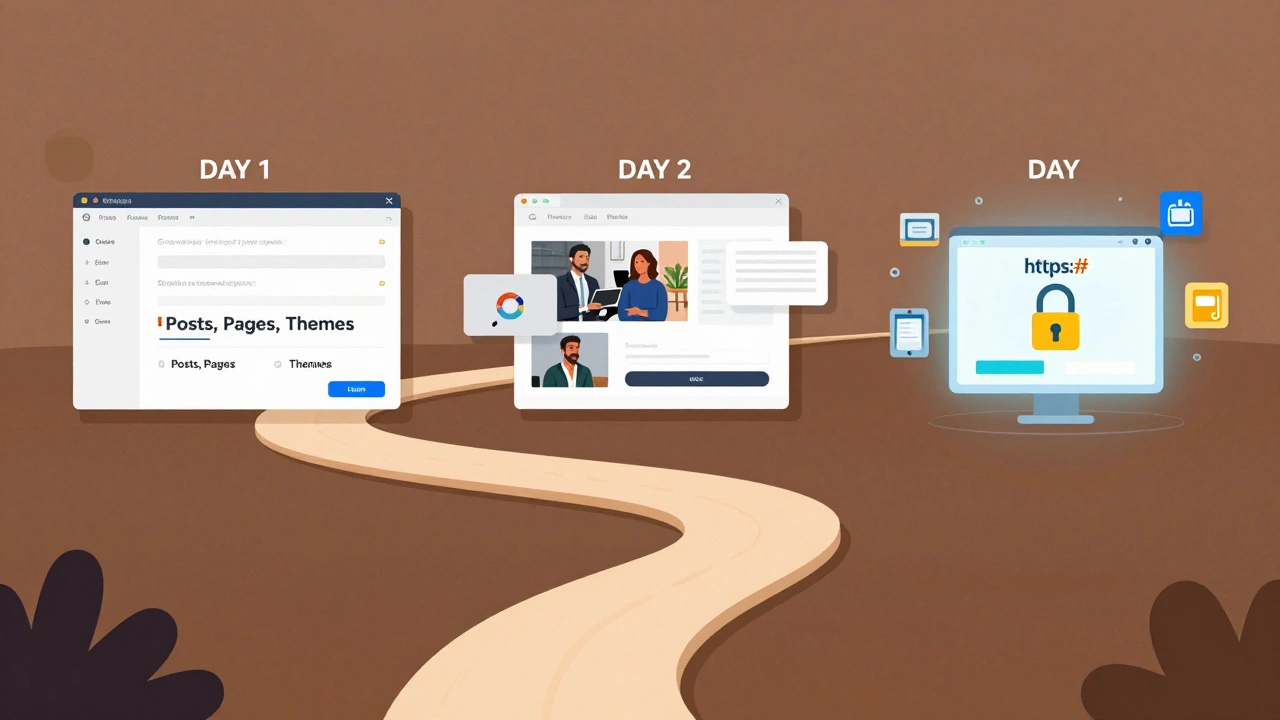
WordPress 3-Day Learning Checklist
Day 1: Setup & Dashboard
Core tasksDay 2: Content & Pages
Core tasksDay 3: Launch & Optimize
Core tasksCan you really learn WordPress in just three days? The short answer is: yes - but not the way most people think. You won’t become a WordPress developer who customizes themes, writes plugins, or debugs PHP errors in 72 hours. But you can build a fully functional website - one that looks professional, runs smoothly, and does exactly what you need - from scratch, in three days. No prior coding experience required.
Day 1: Set Up and Understand the Dashboard
Start by picking a hosting provider. Most beginners go with SiteGround, Bluehost, or Hostinger because they offer one-click WordPress installs. You don’t need to know how servers work. Just sign up, pick a plan, and click "Install WordPress." Within 5 minutes, you’ll have access to your admin dashboard.
Log in. Look around. The dashboard is where you’ll spend most of your time. Don’t get overwhelmed by all the menus. Focus on just three: Posts, Pages, and Appearance > Themes. That’s it. Everything else - plugins, users, settings - can wait.
Install a theme. Go to Appearance > Themes > Add New. Search for "Astra" or "Kadence." Both are lightweight, free, and designed for speed. Activate one. Now your site looks like a real website - not a blank page.
Set up your homepage. Go to Pages > Add New. Name it "Home." Then go to Settings > Reading. Change "Your homepage displays" to "A static page" and select "Home" as the front page. Done. You’ve just created your first web page.
Day 2: Build Core Pages and Add Content
Now you need more than just a homepage. You need an About page, a Contact page, and maybe a Services or Blog page.
Create an About page. Write a short paragraph about who you are or what your business does. Use plain language. People don’t read corporate jargon. They read honesty. If you’re a freelance photographer, say: "I take photos of families in Bangalore. I’ve shot over 200 sessions since 2022." That’s enough.
Install a contact form. Go to Plugins > Add New. Search for "Contact Form 7" or "WPForms Lite." Install and activate. Then go to Contact > Add New. Drag and drop fields: Name, Email, Message. Save. Copy the shortcode. Go to Pages > Contact. Paste the shortcode. Publish.
Add images. Use free stock photos from Unsplash or Pexels. Download one, then click "Add Media" in the editor. Upload it. Center it. Done. No need for Photoshop or design skills.
Install a page builder? Skip it. Block Editor (Gutenberg) is enough. You can drag blocks - text, image, button, heading - and arrange them like Lego. No plugins needed. If you try Elementor or Divi on day two, you’ll slow down. Stick to simplicity.
Day 3: Optimize, Launch, and Protect
By now, your site has content. But it’s not ready. You need to make it fast, secure, and findable.
Install a caching plugin. Go to Plugins > Add New. Search for "WP Super Cache" or "LiteSpeed Cache." Activate it. Click "Enable". That’s it. Your site will load 3x faster.
Set up SSL. Most hosts do this automatically. Go to your site in a browser. If the URL starts with "https://" and has a padlock icon, you’re good. If not, check your hosting dashboard. Turn on SSL. Wait 10 minutes. Refresh.
Test your site. Open it on your phone. Click every link. Type your name into the contact form. Hit send. Did the email arrive? If yes, you’ve just built a working website.
Change your permalink structure. Go to Settings > Permalinks. Choose "Post name." It makes URLs cleaner: /about instead of /?p=123. Click "Save Changes."
Backup your site. Go to your hosting dashboard. Find "Backups" or "Site Backup." Run a manual backup. You don’t need a plugin yet. Just know this: if your site crashes tomorrow, you can restore it.
Launch. Tell one person. A friend. A family member. Ask them: "Does this make sense?" If they say yes, you’re done. You don’t need perfection. You need progress.
What You Can and Can’t Do in 3 Days
Here’s what you’ll be able to do after three days:
- Install WordPress with one click
- Choose and activate a professional theme
- Create and edit pages using blocks
- Add images, text, buttons, and forms
- Make your site load fast with caching
- Secure it with SSL
- Launch a live website
Here’s what you won’t be able to do:
- Customize CSS or PHP
- Build a membership site
- Create a WooCommerce store
- Fix broken plugins
- Optimize for SEO beyond basics
That’s okay. You don’t need to do all of that on day one. WordPress is like a car. You don’t need to know how the engine works to drive it. You just need to know how to turn the key, press the gas, and steer.
After Day 3: What’s Next?
Now that your site is live, you have options.
If you want to sell products? Install WooCommerce. It’s a free plugin. Takes 10 minutes to set up. Add three products. Start selling.
If you want to write a blog? Start posting. One article a week. That’s enough. You don’t need viral content. You need consistency.
If you want to learn more? Watch one YouTube video a week. Search: "WordPress for beginners 2026." Focus on practical tasks: how to add a menu, how to change fonts, how to use widgets. Skip theory.
Don’t try to learn everything. Pick one goal. Grow one feature. Then move to the next.
Common Mistakes to Avoid
Most people fail on day two. Here’s why:
- Installing 10 plugins at once - slows the site, causes conflicts
- Trying to design a logo - use Canva for free
- Waiting for "perfect content" - publish now, improve later
- Using a theme with 500 options - stick to simple themes
- Not backing up - always backup before making changes
The biggest mistake? Thinking you need to be an expert before you start. You don’t. You just need to begin.
Real Example: A Bakery in Bangalore
Last year, a woman named Priya ran a home bakery. She wanted to take online orders. She had zero tech skills. She spent three days on WordPress. Here’s what she did:
- Day 1: Installed WordPress on Hostinger. Used Astra theme.
- Day 2: Created Home, About, Menu, and Contact pages. Added 8 photos of her cakes.
- Day 3: Installed Contact Form 7. Set up SSL. Ran a backup.
She launched on day three. By day five, she got her first online order. Today, she’s making ₹40,000 a month. She still doesn’t know what PHP is. But she knows how to update her menu.
You don’t need to be better than her. You just need to start like her.
Can I learn WordPress without knowing how to code?
Yes. WordPress was built for non-coders. You don’t need HTML, CSS, or JavaScript to build a website. Everything is done through visual editors, drag-and-drop blocks, and pre-made themes. Thousands of small businesses in India run their websites without writing a single line of code.
What’s the fastest way to learn WordPress?
Build something real. Don’t watch tutorials for hours. Instead, pick a simple goal - like creating a portfolio page or a contact form - and do it. Use the Block Editor. Install one theme. Add three pages. That’s your first lesson. Repeat with new goals each day.
Do I need to buy a premium theme or plugin?
No. Free themes like Astra, Kadence, and OceanWP are powerful enough for 90% of users. Free plugins like Contact Form 7, WP Super Cache, and Yoast SEO (free version) do the job. Save money until you know exactly what you need. Most paid tools are just fancy versions of free ones.
How long does it take to build a website with WordPress?
A basic website - homepage, about, contact, blog - takes 3 days if you work 2-3 hours a day. A more complex site, like an online store, takes 2-4 weeks. But you can launch the core version in 72 hours. That’s the key: launch first, improve later.
Is WordPress still relevant in 2026?
Yes. WordPress powers over 43% of all websites on the internet. It’s used by small businesses, universities, news sites, and even government agencies. New versions come out every 4-6 months. It’s not going away. It’s getting better - faster, more secure, and easier to use.
Final Thought
You don’t need to be a tech expert to build a website. You just need to start. Three days isn’t enough to master WordPress. But it’s more than enough to build something real. And that’s all that matters.